How to Use Your iPad as a Second Monitor for Windows
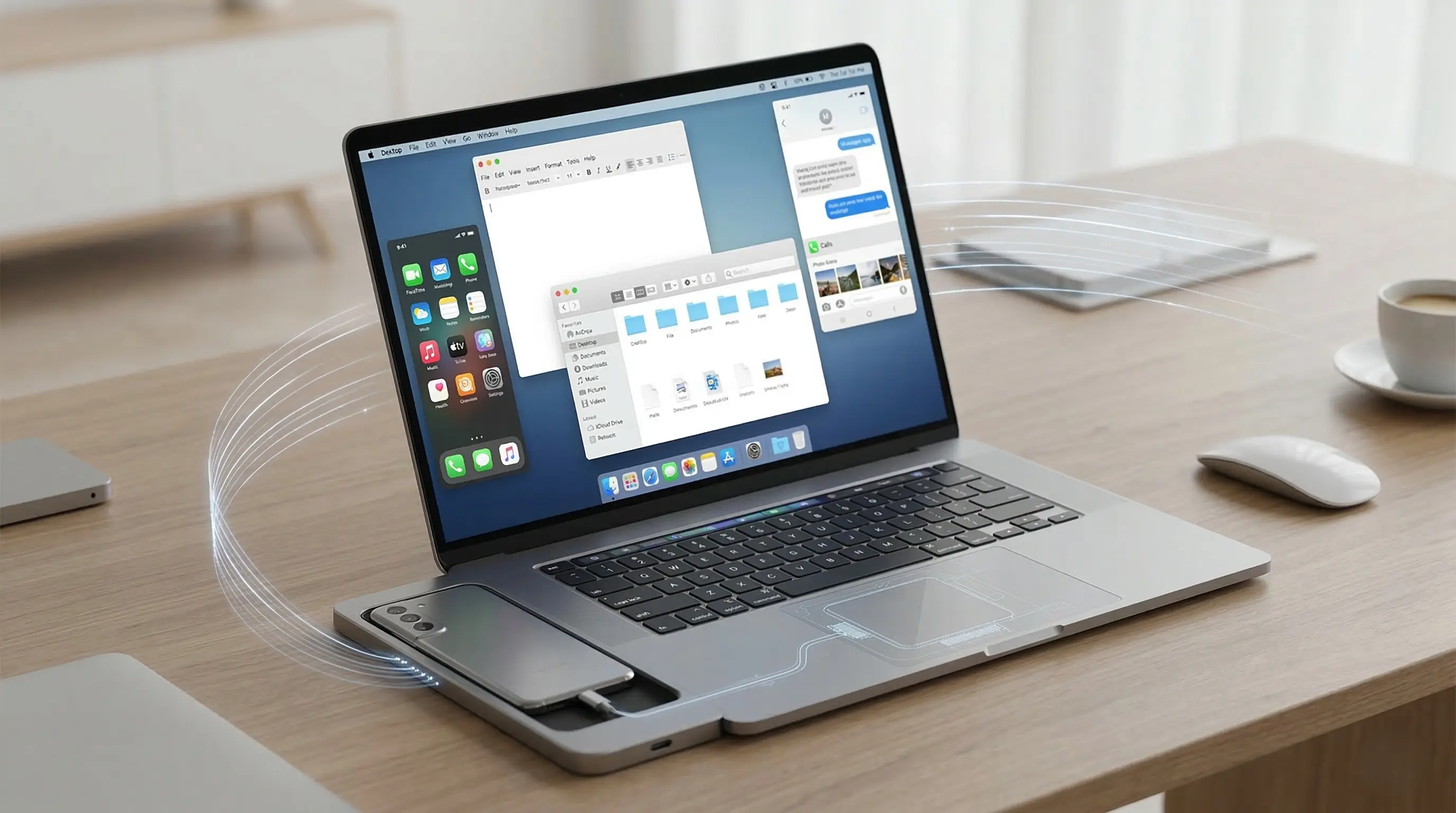
Finding yourself short on screen space while working on a laptop is a common frustration. But if you have an iPad, you already own a fantastic portable monitor. This guide outlines a straightforward method to connect your iPad to your Windows PC using a USB capture card and our free web tool, NerdZap View. Because this requires no software installation on your PC, it is completely friendly for corporate work laptops
📌 Key Takeaways
- Use your iPad as a portable second screen for a Windows PC.
- No software installation is required on the Windows machine, making it ideal for work devices.
- Requires an iPad with a USB-C port running iPadOS 17 or later, plus a basic USB capture card (links below!).
Transparency Note: As an Amazon Associate I earn from qualifying purchases. This means if you click a link and buy something, I may receive a small commission at no extra cost to you.
You will need to open this tool on your iPad to view the display feed. This is 100% browser based, no install is needed!
Step 1: Step 1: Connect the Hardware
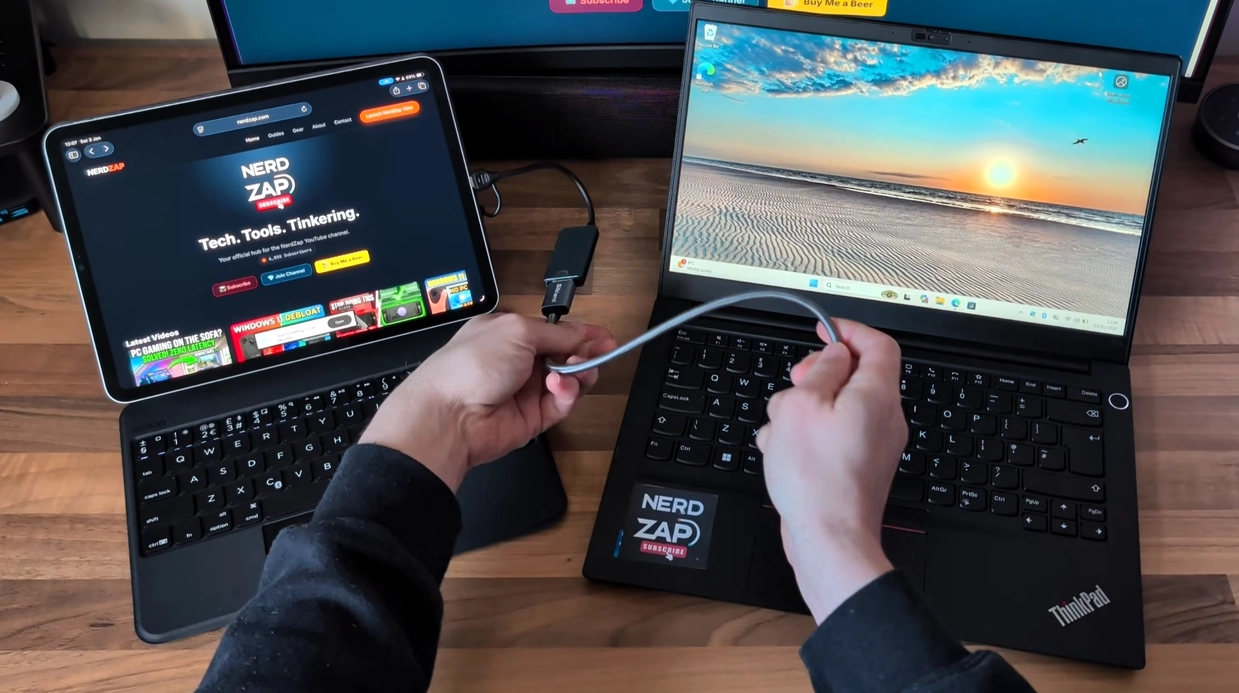
To get started, you need an iPad with a USB-C port running iPadOS 17 or later. This includes the iPad Pro, Air, Mini, and the 10th generation standard iPad. Please note that the 10th generation iPad features a slower USB port, which might slightly affect display performance.
You will also need a USB capture card. These cost around £20 and essentially give your iPad an HDMI input.
- Plug the USB capture card into the USB-C port of your iPad .
- Connect an HDMI cable from the capture card to the HDMI port on your Windows laptop .
- If your laptop lacks an HDMI port, a standard USB-C dock with an HDMI output works perfectly.
Step 2: Step 2: Launch NerdZap View
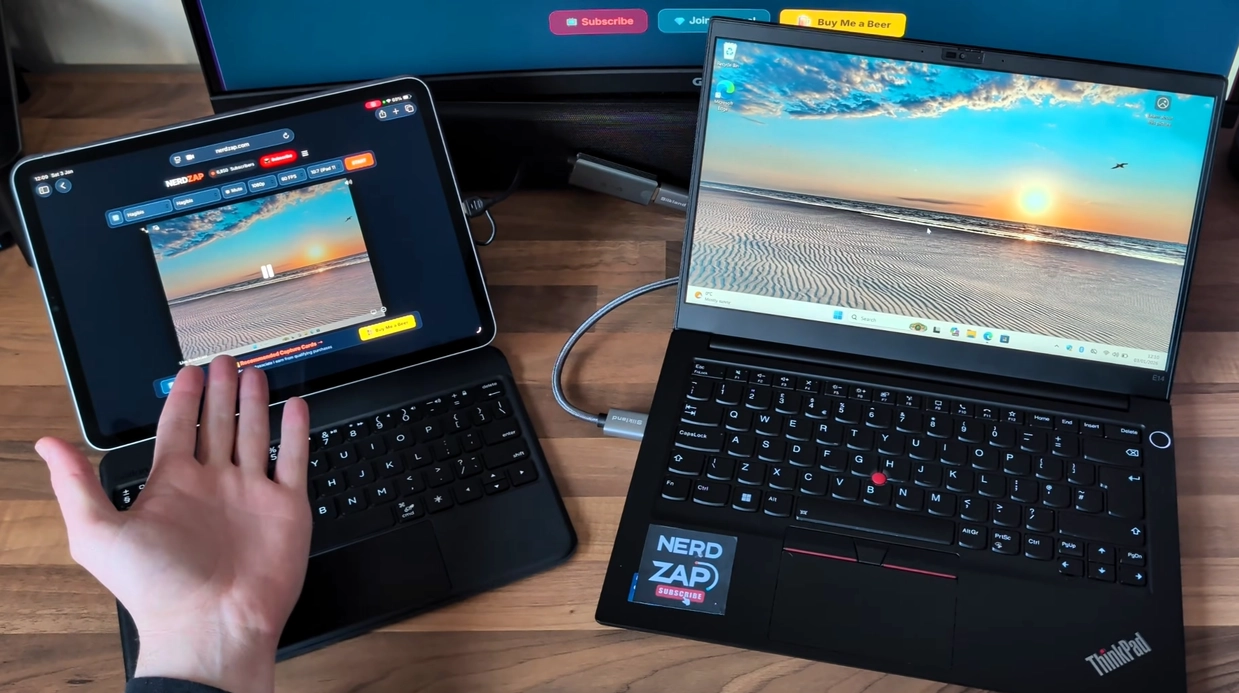
With the hardware connected, you now need to open the display interface.
- Open your preferred browser on your iPad and navigate to nerdzap.com/view.
- NerdZap View is a custom in-browser tool that will automatically detect your capture card.
- When prompted for permissions, allow access to your camera . The browser views the capture card as a webcam, but rest assured that all processing happens locally on your device with no data sent externally.
Your iPad should now display the video output from your PC.
Step 3: Step 3: Configure Windows Display
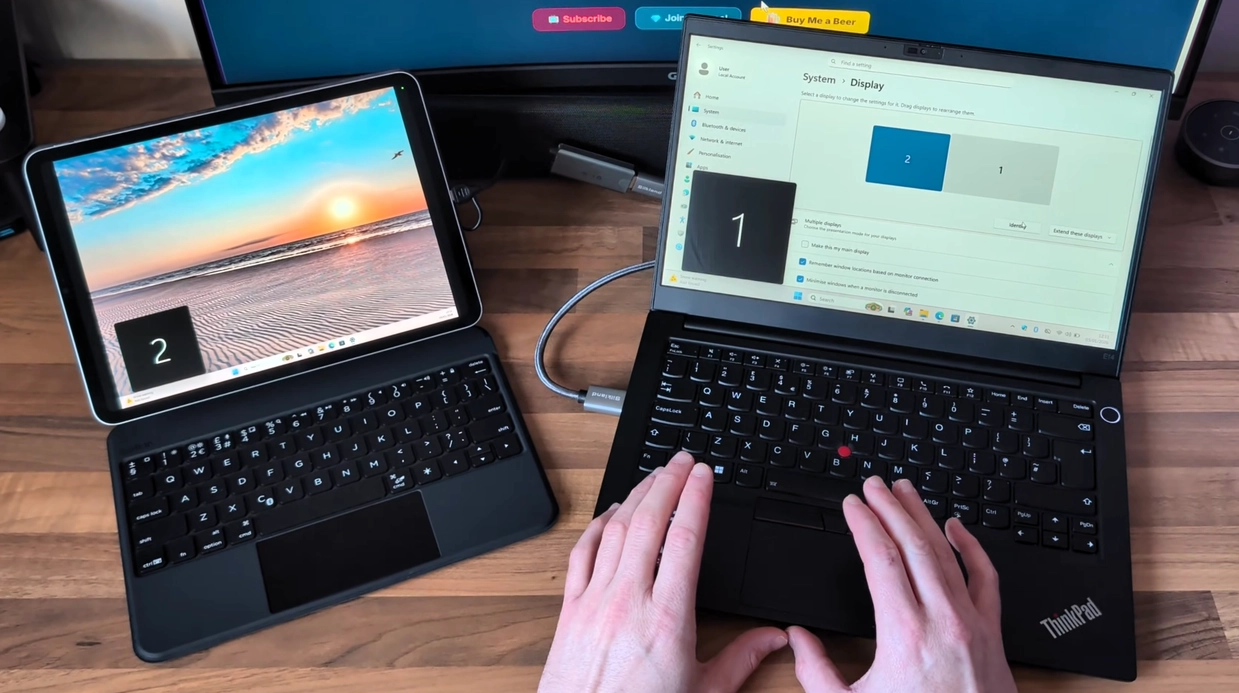
Your Windows PC should detect a second display immediately. We just need to configure it to look correct.
- Right-click on your desktop and select Display Settings.
- Ensure the Multiple displays setting is changed to "Extend these displays".
- Select the new monitor (usually listed as display 2) and adjust the resolution.
Tip: Use the resolution cheat sheet at the bottom of the NerdZap View page to find the best aspect ratio for your specific iPad model.
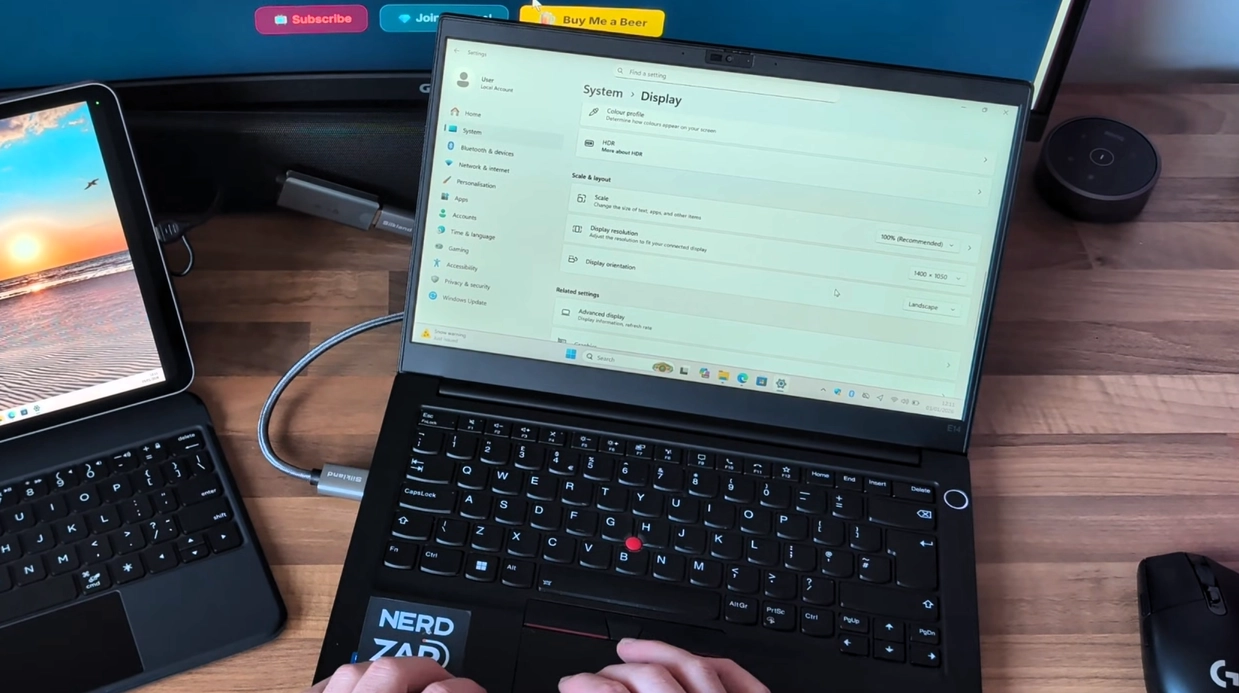
Step 4: Step 4: Audio Setup (Optional)
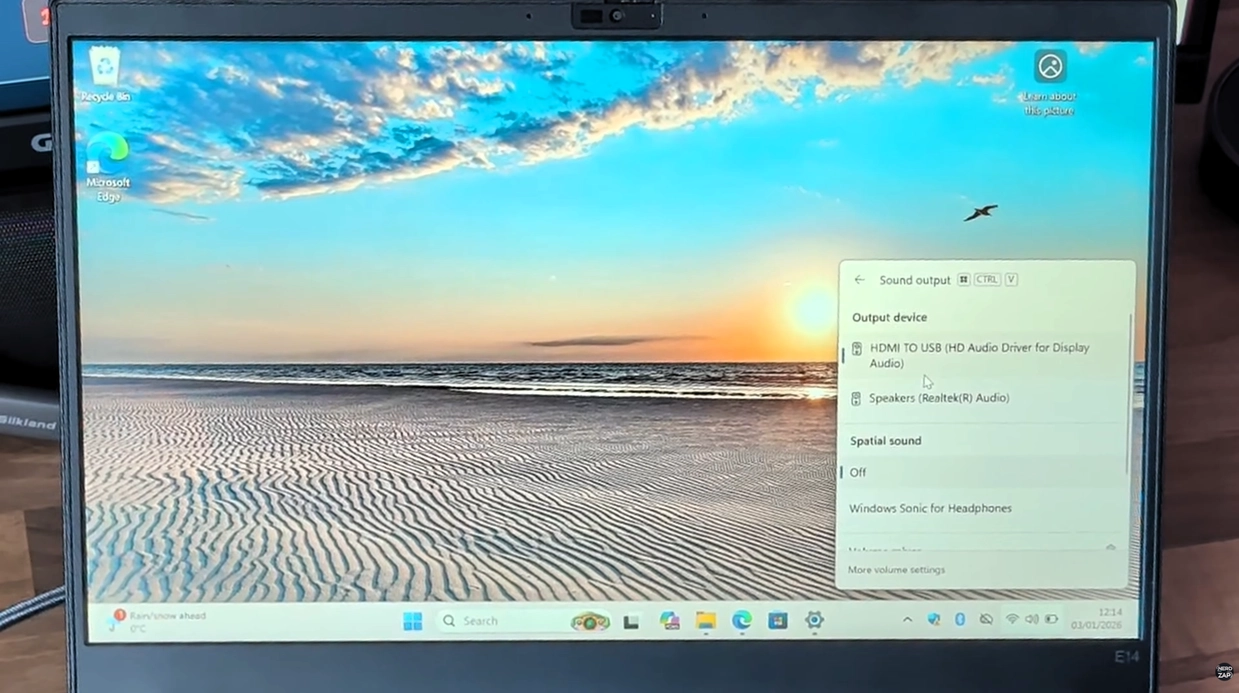
One of the great features of this setup is that you can route your PC audio through the superior speakers of your iPad or connected AirPods.
- In the NerdZap View interface on your iPad, locate the mute checkbox at the top of the screen and untick it.
- On your Windows PC, click the Speaker icon in the taskbar .
- Select the USB capture card as your default playback device.
Step 5: Step 5: Enjoy!
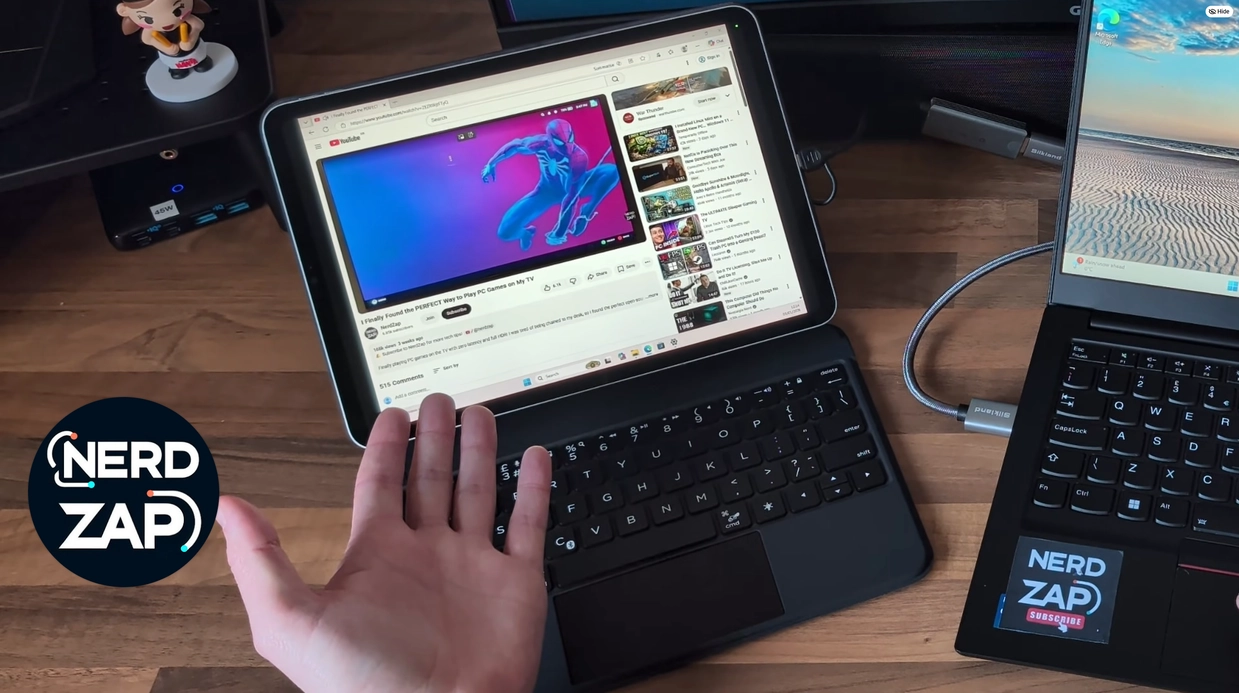
You are now ready to enjoy your extended workspace. Moving windows and playing videos will route seamlessly to your iPad with fully synchronised sound. It is that simple .


About the Author: Chief Nerd
With over 15 years in IT and Cyber Security, I specialise in making tech accessible. NerdZap grew from a YouTube channel into a dedicated site for hardware reviews, guides, and tech news. I aim to share my industry experience while balancing life as a busy dad.