Install Any Game Launcher on Steam Deck
Tired of being restricted to just your Steam library? This guide covers the installation of third-party launchers like Epic Games, GOG, Battle.net, and Rockstar using the NonSteamLaunchers script—giving you full access to your entire PC game catalog.
📌 Key Takeaways
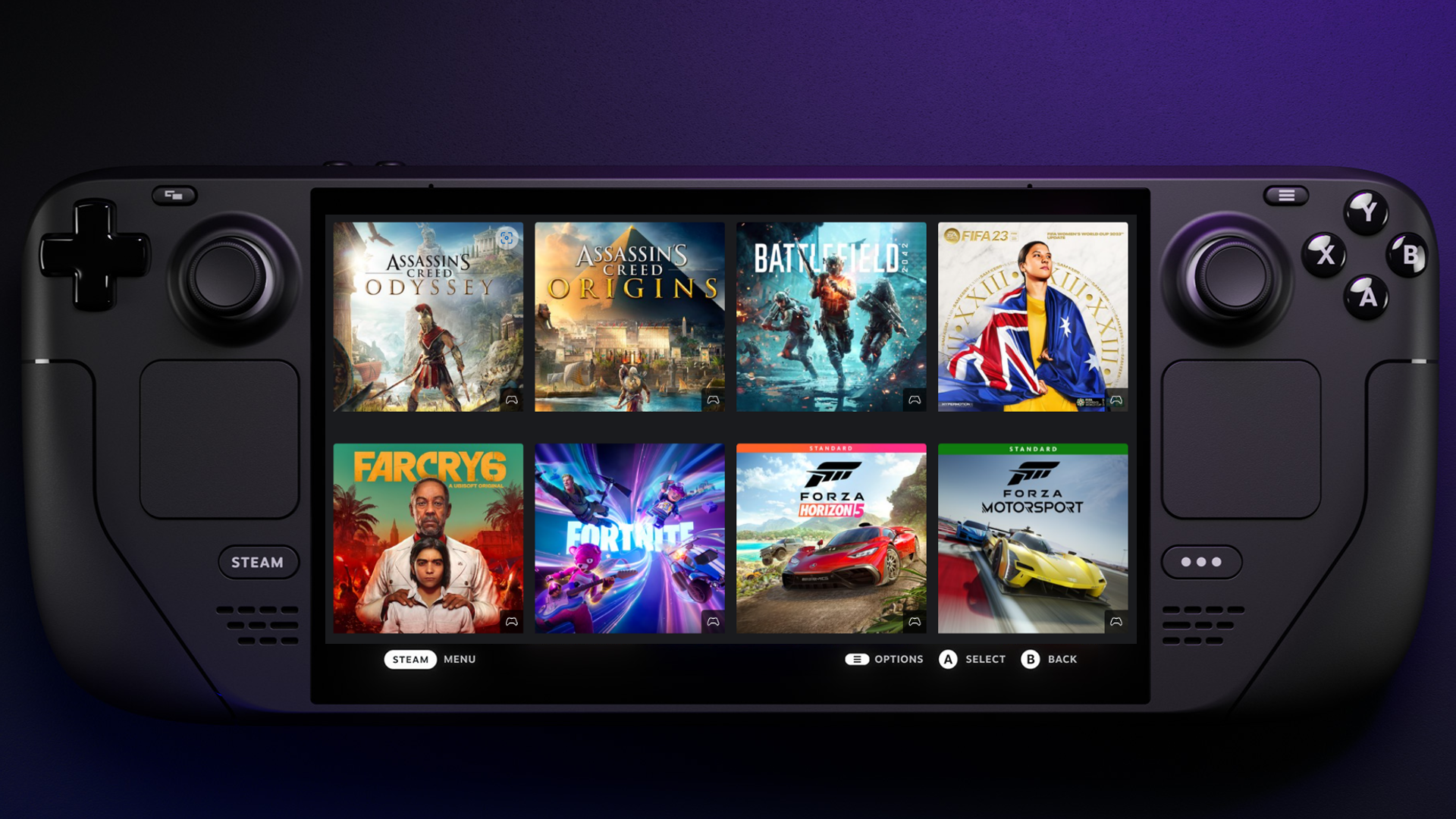
- Unified Library: Games from other launchers will appear directly in your Steam Library.
- Automated Setup: The script handles Proton compatibility and installation paths automatically.
- Desktop Mode Method: As the Decky Plugin is currently undergoing updates, the Desktop script is the most reliable way to install these launchers.
Step 1: Enter Desktop Mode
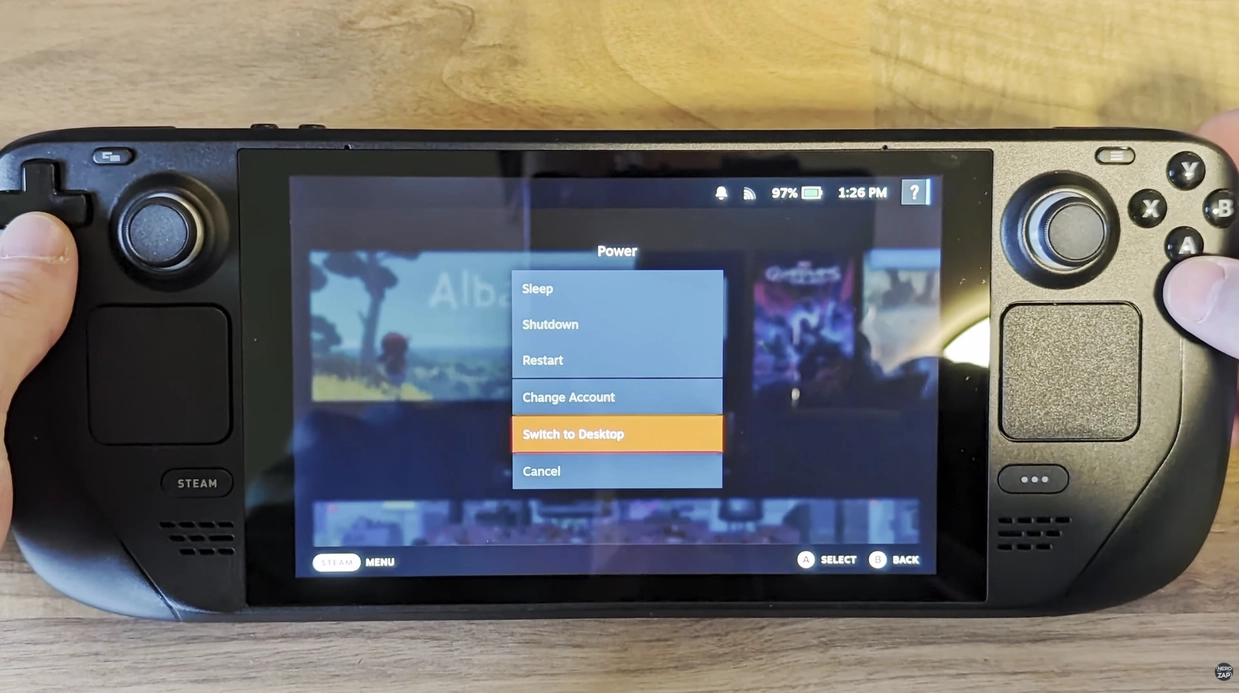
- Hold the Power Button on your Steam Deck.
- Select Switch to Desktop.
Step 2: Run the NonSteamLaunchers Script
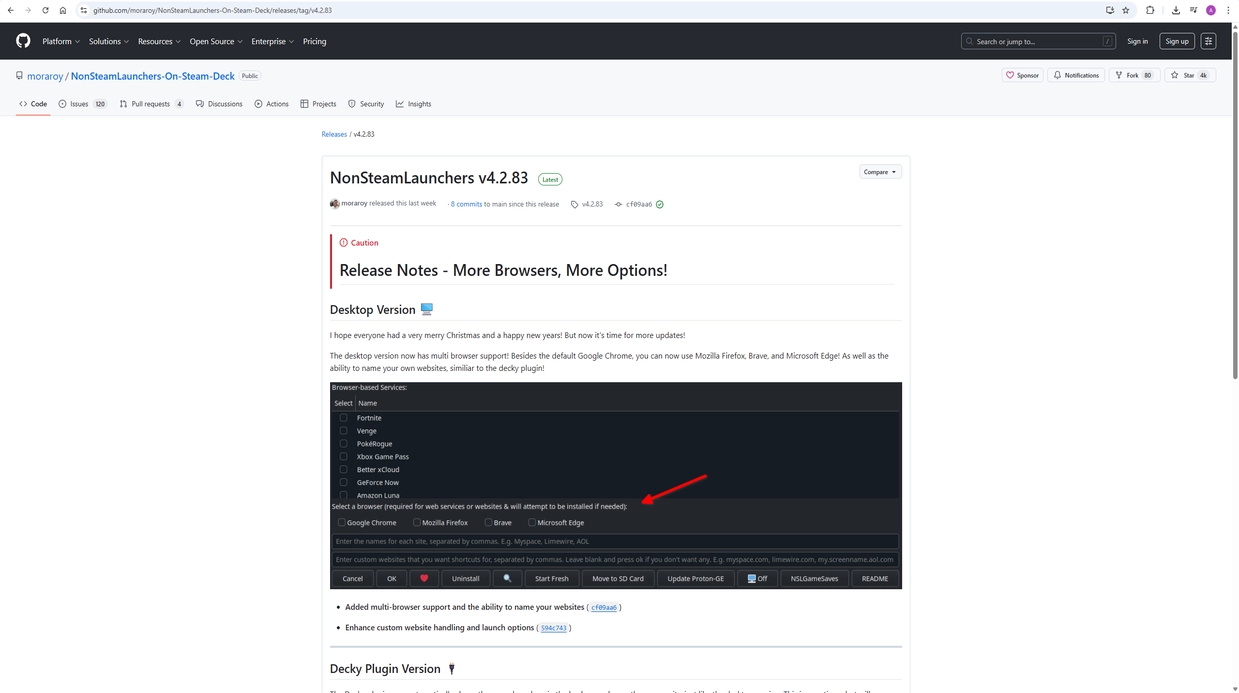
- Open your browser and go to the NonSteamLaunchers GitHub page.
- Download the
NonSteamLaunchers.desktopfile (or follow the terminal command provided in the repo description). - Execute the file on your desktop. If prompted, click Continue.
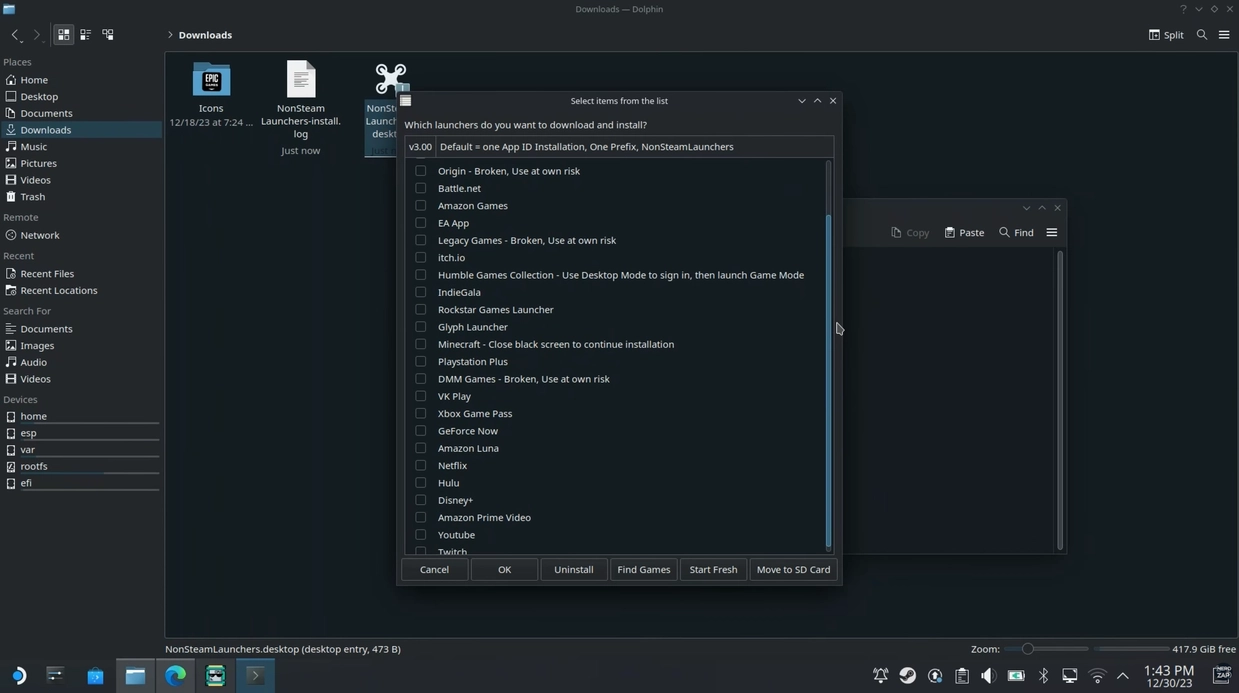
- The script will open a window listing available launchers.
Step 3: Select and Install Launchers
- Tick the launchers you wish to install (e.g., Epic Games, GOG, Ubisoft, Rockstar).
- (Optional) Toggle Auto Scan Games. This allows the script to automatically add individual games to your Steam library once you install them within the third-party launcher.
- Click Install. The script will download the necessary files and set up the Proton prefixes.
Step 4: Restart and Access
- Once the installation is finished, it is highly recommended to Restart your Steam Deck.
- Return to Gaming Mode.
- Navigate to your Library > Non-Steam tab. Your new launchers will be ready to open.
Step 5: Installing and Playing Games
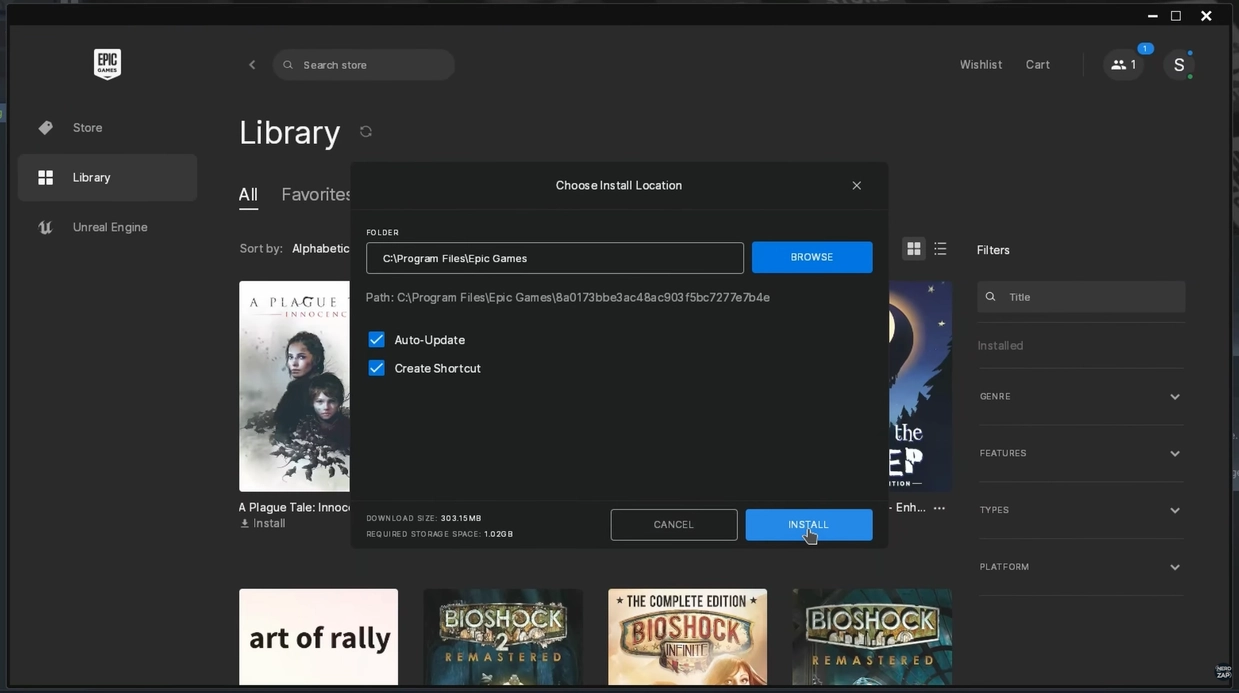
- Open a launcher (e.g., Epic Games) and log in.
- Download your desired game.
- If you enabled "Auto Scan," the game should appear in your Steam Library after a few moments (or a restart). If not, you can simply launch the game from within the launcher itself.



About the Author: Chief Nerd
With over 15 years in IT and Cyber Security, I specialise in making tech accessible. NerdZap grew from a YouTube channel into a dedicated site for hardware reviews, guides, and tech news. I aim to share my industry experience while balancing life as a busy dad.
... Subscribers